iOS
On iPhone and iPad, the platform lives at mobile.ugimate.com. It installs straight from Safari using Add to Home Screen - there's no App Store download.
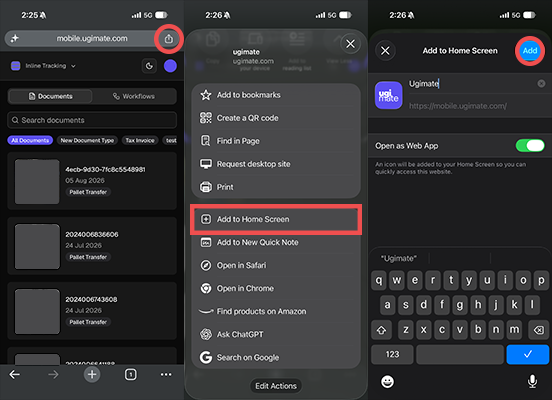
Step 1: Open the mobile address in Safari
Open Safari or Chrome and go to mobile.ugimate.com.
Step 2: Sign in
Sign in with the same account you use on the website. If you belong to more than one organisation, you can switch between them once you're in.
Step 3: Add to your Home Screen
- Tap the Share button - the square with an upward arrow, at the bottom of the screen (or the top on iPad).
- Scroll down the share sheet and tap Add to Home Screen.
- Edit the name if you'd like, then tap Add in the top-right corner.
The Ugimate icon now sits on your Home Screen. Tap it to open the platform in its own full-screen window, without Safari's address bar.
If you can't find Add to Home Screen, scroll further down the share sheet - it sits below the row of app icons. You may need to tap Edit Actions to enable it.
Updates
There's nothing to update. Because the platform is served from the web, you get the latest version each time you open the app.
Removing the app
Touch and hold the Ugimate icon on your Home Screen, then tap Remove App → Delete from Home Screen.
This only removes the shortcut from your device. Your account and your documents are untouched, and you can add it back at any time by repeating the steps above.
Common issues
| Problem | What to try |
|---|---|
| Add to Home Screen isn't in the share sheet | Make sure you're in Safari, not another browser. Scroll down, or tap Edit Actions to add it. |
| The icon opens Safari instead of a full-screen app | The shortcut was created from a different browser. Delete it and add it again from Safari. |
| Sign-in doesn't stick between sessions | Check that Private Browsing is off, and that Safari isn't set to block all cookies. |